|
|
|
|
|
Empowering Educators Through Course Ownership
Exceptional learning experiences begin with educators who have full control over their course materials. When our faculty partners master the digital tools at their disposal, they can adapt to classroom needs in real-time, tailoring assignments to perfectly align with their specific pedagogical goals.
Building hands-on mastery of your course architecture ensures that your assignments are working exactly the way you need them to before the term even begins.
This month, let's dive into how you can become a "super user" of of platform. For a deeper dive, check out our latest blog posts:
📚 Taking Full Control of Your Course Setup
✍️ Customizing Quizzes, Homework, Exams, and Reports
|
|
|
|
Feature Spotlight: Live Quiz Class Result
Elevate your engagement with real-time quiz results. This live data view transforms everyday quizzes into dynamic in-class concept checks, designed to surface misconceptions instantly.
|
 |
|
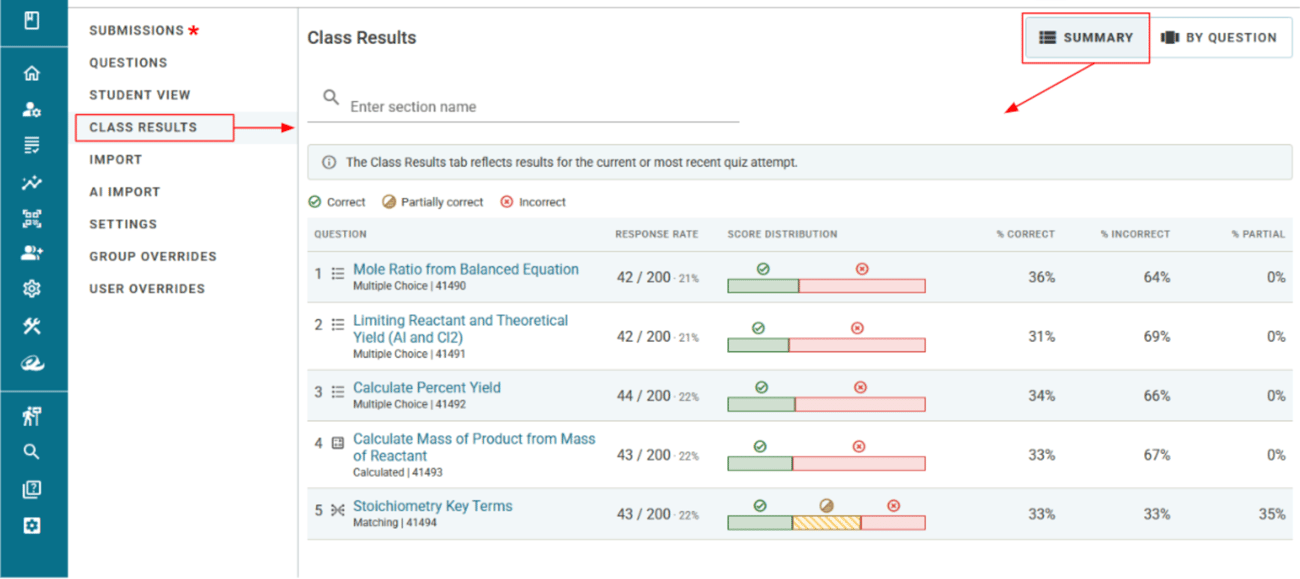
Menu options now match DFMs (Reports): What used to be called “Results” is now “Submissions” (see asterisk above) and moved to the top of the menu. This now matches the names and menu location as the other assignment types.
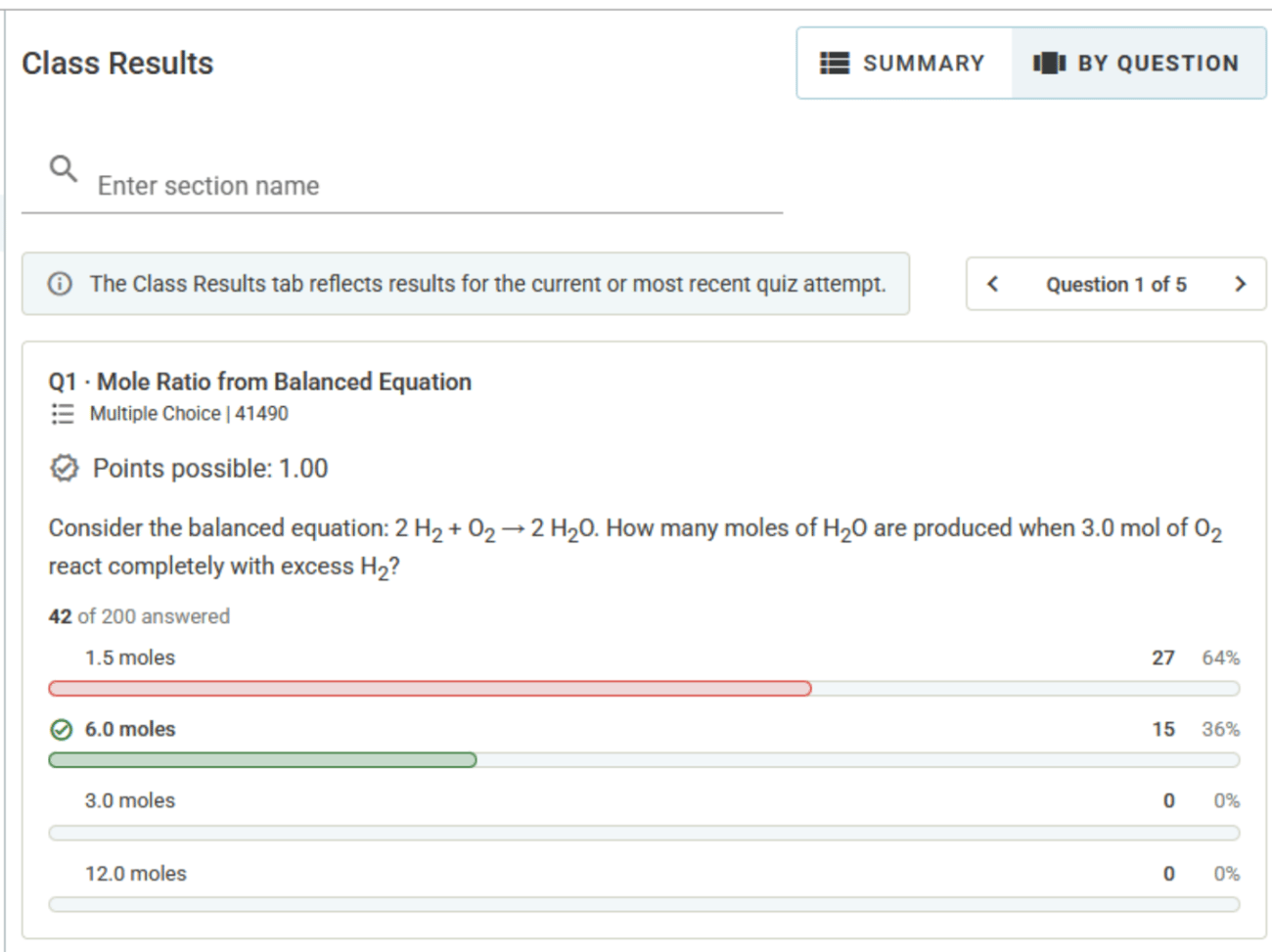
Live, Class Results dashboard for instructors and TAs: Monitor whole-class submissions or filter by section in real time. Question-level drilldowns let you pinpoint exactly where understanding splits, allowing you to address pre-lab reading gaps or safety protocols before students handle equipment.
|
 |
|
Flexible checkpoint workflows: Run a 15-minute readiness check at the start of lab to verify prep and confirm attendance, or deploy a mid-session exit ticket to gauge comprehension on the fly.
Reward active participation with tokens: Consider tying quiz completion or score threshold directly to earning tokens instead of standard points, rewarding engagement without grade inflation.
|
|
|
|
Deep Dive: Customizing Reports on the Definition Tab
Did you know you can edit your assignments in Catalyst's platforms before they go live for students?
This month, we are sharing crowd-sourced insights directly from our Faculty Success Management (FSM) team to help you become a Definition Tab superhero! You can edit almost everything in the Graded (Calculations) section right from the Definition Tab of any report.
Here is a peek under the hood at what you can customize.
At a Glance: Question Types & Grading Methods
-
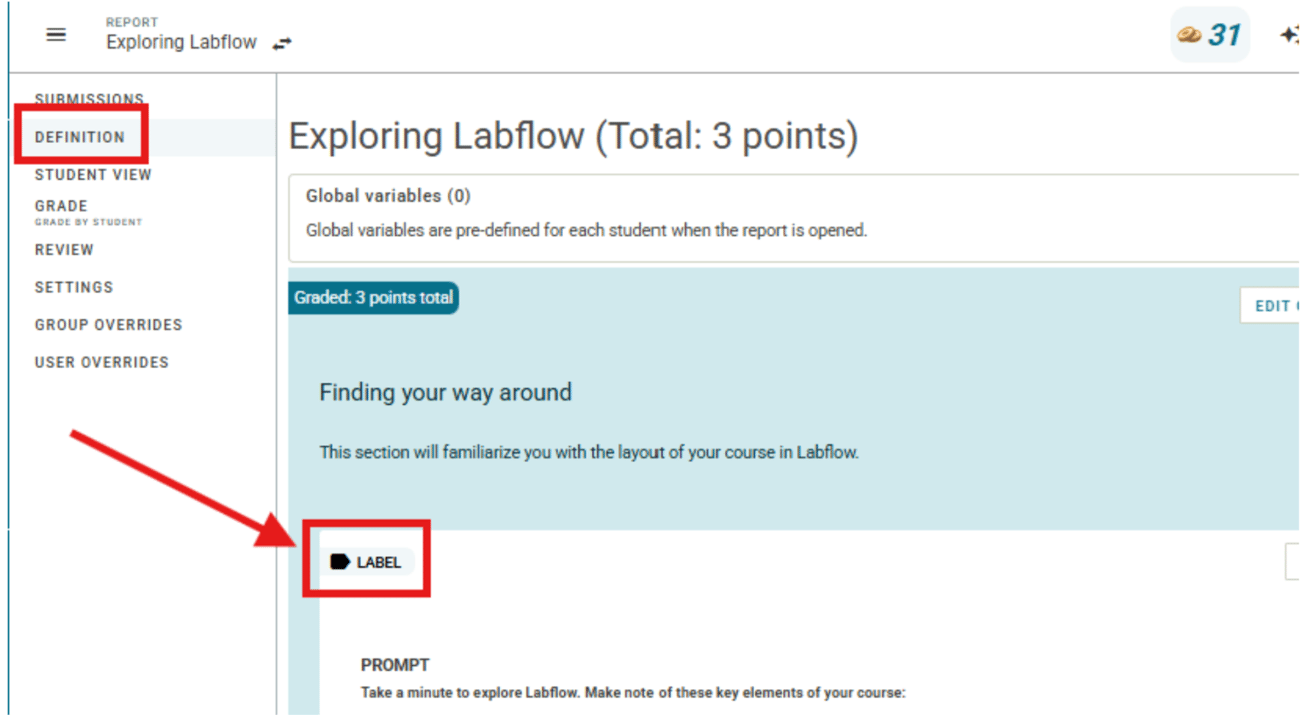
See Question Types: Check the top left corner of any question to instantly identify its type (File Upload, Essay, Numeric, Label, or Table).
-
Check Grading Methods: Look for the blue box labeled Answers, Submission, and Grading. A small badge will clearly indicate if the question is Auto-graded, Manually-graded, or Graded with AI Assist.
|
 |
|
Customizing Text and Tables
-
Edit Labels: Simply find the label, click Edit Item, and change the text prompt to suit your specific instructions.
-
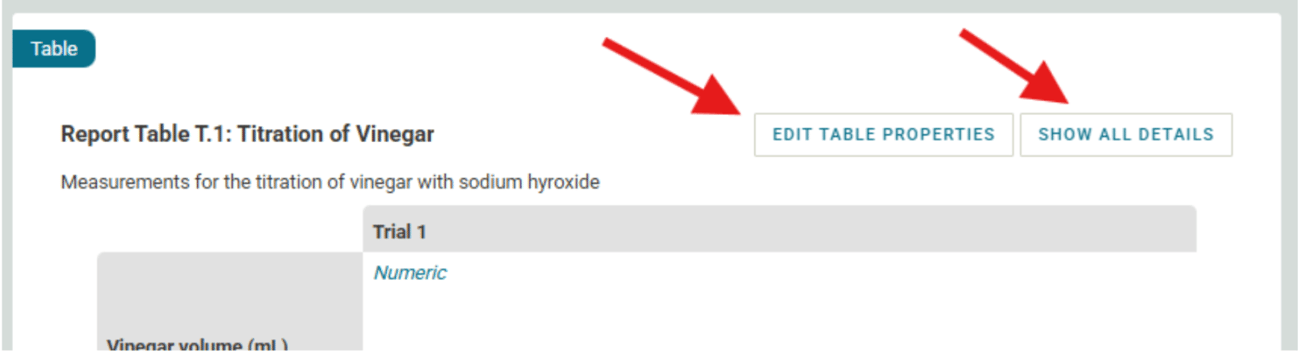
Edit Tables: Navigate to the top right corner of any table to find two powerful options:
-
Edit Table Properties: Quickly change the table's title and caption.
-
Show All Details: Expand the table into individual cells, then click Edit Item next to any cell to customize its contents.
|
 |
|
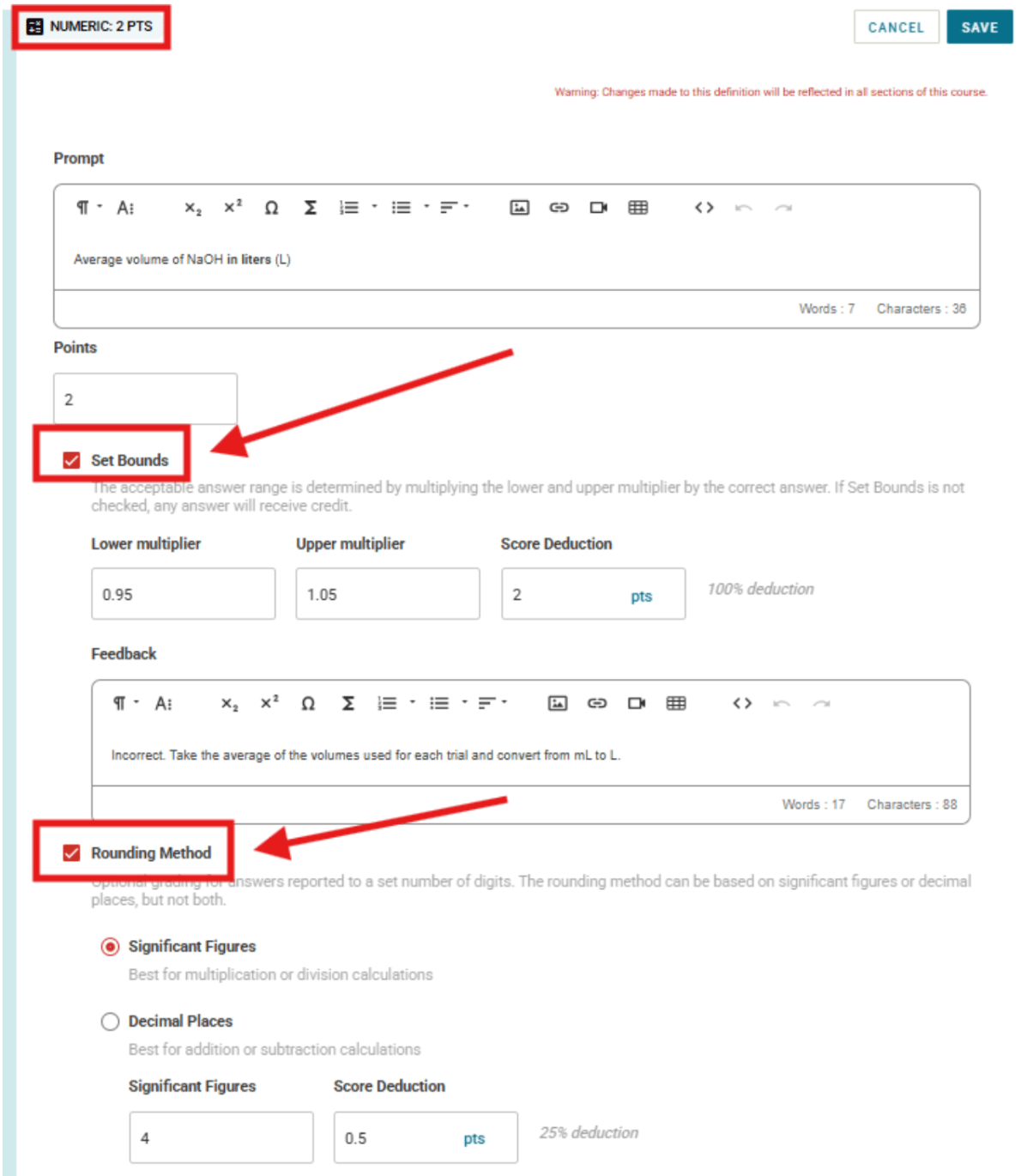
Precision Control for Numeric Questions Click Edit Item on any numeric question to change the prompt and point value, and take advantage of two major settings:
-
Set Bounds: Establish an acceptable answer range using multipliers. If left unchecked, any number gets full credit. You can also configure point deductions and custom feedback if a student's answer falls outside your set range.
-
Rounding Method: Hold students accountable for precision by grading on either Significant Figures or Decimal Places (choose one). You can even add specific point deductions for rounding errors.
|
 |
|
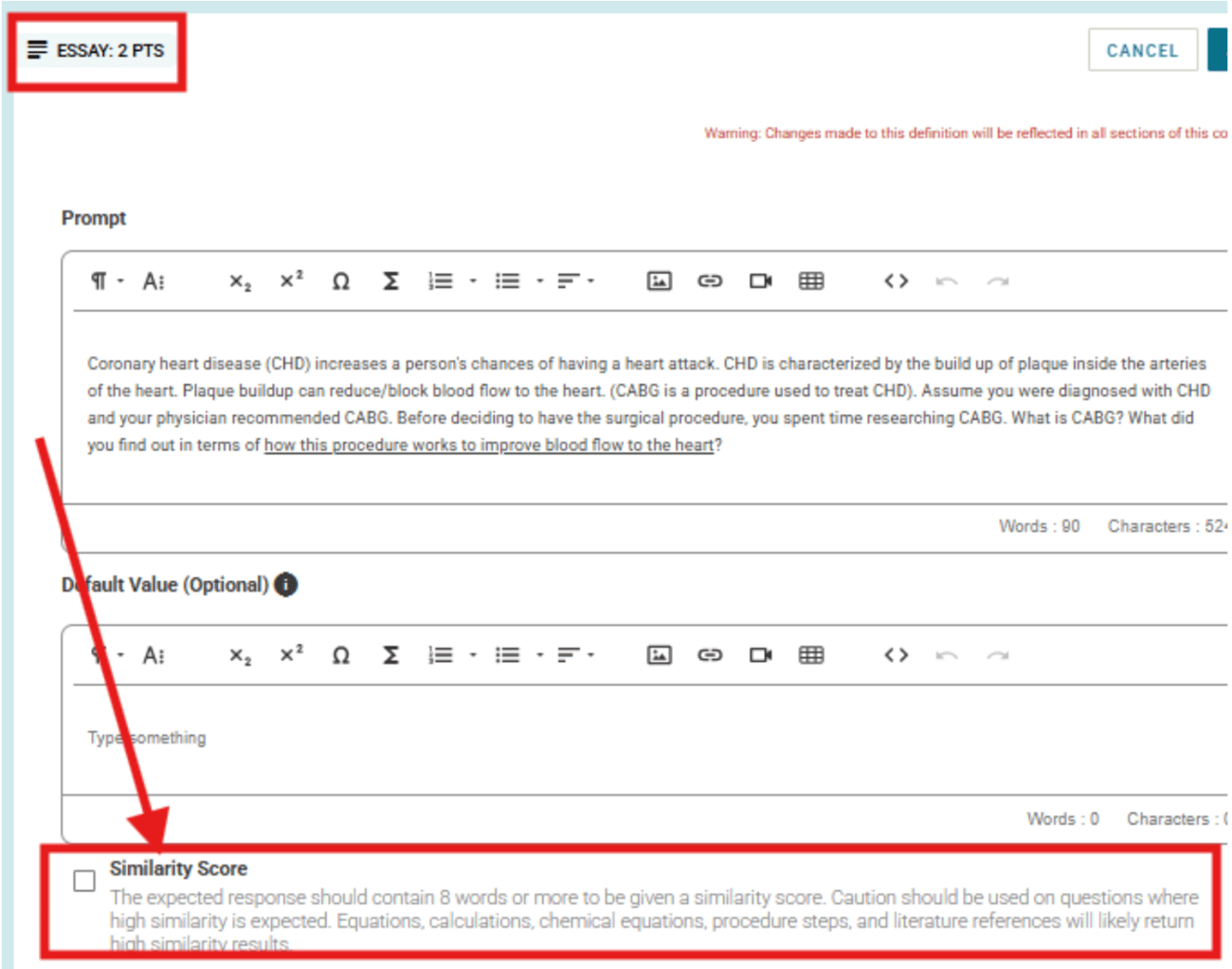
Streamlining Essays and File Uploads Click Edit Item on Essay or File Upload questions to update prompts, add internal instructions for your TAs/graders, and select a grading type (Completion, Simple Score, or Rubric).
|
 |
|
Using Rubric Grading Speed up your grading workflows by attaching rubrics to Essay and File Upload questions. Choose from three rubric types:
-
Single Choice: The grader selects one item that best matches the student's work.
-
Points: The grader selects items that add or subtract points from the total score.
-
Multipart: A comprehensive rubric split into two or more categories, where each category utilizes either single choice or points-based grading.
|
|
|
|
Instructor Spotlight: Mastering Assignment Autonomy |
|
|
|
Dr. Kyle Schmid and Colin Mahon, Penn State University
|
|
|
|
This month, we’re spotlighting Dr. Kyle Schmid and Colin Mahon, organic chemistry lab co-instructors at Penn State, for being true Definition Tab editing superheros!
Kyle and Colin have taken complete ownership over their lab assignments in Labflow by mastering the platform's editing capabilities. By learning the ins and outs of the Definition Tab, they have unlocked full autonomy over the course design.
This allows them to adapt and modify assignments on the fly, ensuring they can fulfill their students' needs in real-time without missing a beat. This approach highlights how mastering educational technology translates directly into more responsive, effective teaching.
Join the Conversation
Are you doing something unique to customize your assignments, or utilizing the Definition Tab in a creative way? Reply directly to this email to drop a comment in our Faculty Community Forum!
Last But Not Least
As we continuously work on improving our platform and adding new features, your input is extremely valuable to us! How would you rate our platform from 1-10? |
| Submit Your Rating |
|
|
|
Warmly,
The Catalyst Team
Built by Educators. Powered by Innovation.
|
|
|
|
|
|
|
|
|
|